Set up your order alert.
Three steps, about ten minutes.
Before you start
You need a published Wix site with Wix Stores, and OBS. Grab both URLs from the copy buttons in your alert editor first: Wix webhook and Overlay for OBS. Only the webhook URL can create alerts, so keep that one secret. The overlay URL is safe to have on screen.
1Connect your Wix shop
- Open manage.wix.com and pick your site if you have more than one.
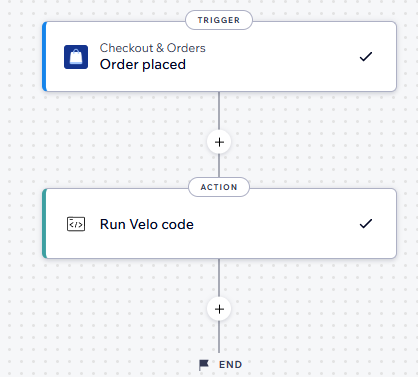
- Automations in the left sidebar, then Create Automation → Start from Scratch.
- Set the trigger to Order placed, under Checkout & Orders.
- As the action, pick Run Velo code.
- Click Start Coding on the left. If the button is not there, reload the page with F5 and it shows up.
- Name the code file,
Twitchalertfor example, and confirm with Create & Start Coding. - Replace what is in the file with the code below, then swap the whole
"YOUR_WEBHOOK_URL"string, quotes included, for your webhook URL. Save. - Back in the automation, press Activate. Nothing arrives until you do.
export const invoke = async ({ payload }) => {
  const response = await fetch("YOUR_WEBHOOK_URL", {
    method: "post",
    headers: { "Content-Type": "application/json" },
    body: JSON.stringify({
      orderNumber: payload.orderNumber,
      currency: payload.currency,
      priceSummary: { total: { value: payload.priceSummary?.total?.value } },
      lineItems: (payload.lineItems || []).map(item => ({
        itemName: item.itemName,
        quantity: item.quantity,
        image: item.image,
        descriptionLines: item.descriptionLines
      }))
    })
  });
  if (!response.ok) {
    const body = await response.text();
    let detail = body;
    try { detail = JSON.parse(body).detail || body; } catch (e) {}
    const reason =
      `Order alert not delivered (HTTP ${response.status}): ${detail}`;
    console.error(reason);   // appears in Wix Logs while they are open
    throw new Error(reason); // marks the automation run as failed
  }
  return {}
};The snippet sends order number, total, currency and items. It does not send names, addresses or payment data.
Check that it works: place a test order in your own shop or use the Test Feature of the Automation. The editor's status line then shows "last order: just now".
If nothing arrives, it is usually an automation that was saved but never activated, or a webhook URL pasted without its quotes. Wix lists every run, so you can at least see whether it fired, and it marks the ones that could not deliver as failed. A broken setup never looks successful.
For this reason, open the Developer Tools → Logging Tools → Wix Logs in your Wix dashboard, and open it before you place the test order. Wix Logs is a live stream that keeps no history, so opening it after the run shows you nothing. That is an important Thing to know
2Add the alert to OBS
Add a Browser Source and paste your overlay URL as its address. Make the source big enough for the card, then drag it where you want it. The alert appears at the source's top-left corner. With the source open, the editor's status line counts it as a connected overlay.
3Style the alert
The alert editor handles colors, font, size and animation, and hides whatever you do not want on screen: the order number, the quantities, the product images and product details. Save it and Press "Send test to OBS" to play your latest order into the scene and watch it appear on Screen.